


In today’s busy digital age of the modern era, time management is not a luxury but a necessity. For freelancers, working professionals, and anyone serious about accomplishing tasks, even small details like how to change a voicemail on an iPhone can take up valuable time if not properly done.
Have you ever missed an important call, only to find out afterwards that your voicemail wasn’t set up or sounded outdated? You’re not alone. Knowing how to change your voicemail on iPhone may seem pointless, but it always ends up being an annoying time-waster, especially if you have no system in place.
This article will guide you through changing the voicemail on your iPhone, with a focus on time management. You won’t only learn the steps but also how to tackle even simple phone settings as part of your time management strategy.
How to change voicemail on iPhone?
Here’s how to change voicemail on iPhone—fast and clear, with no fluff:
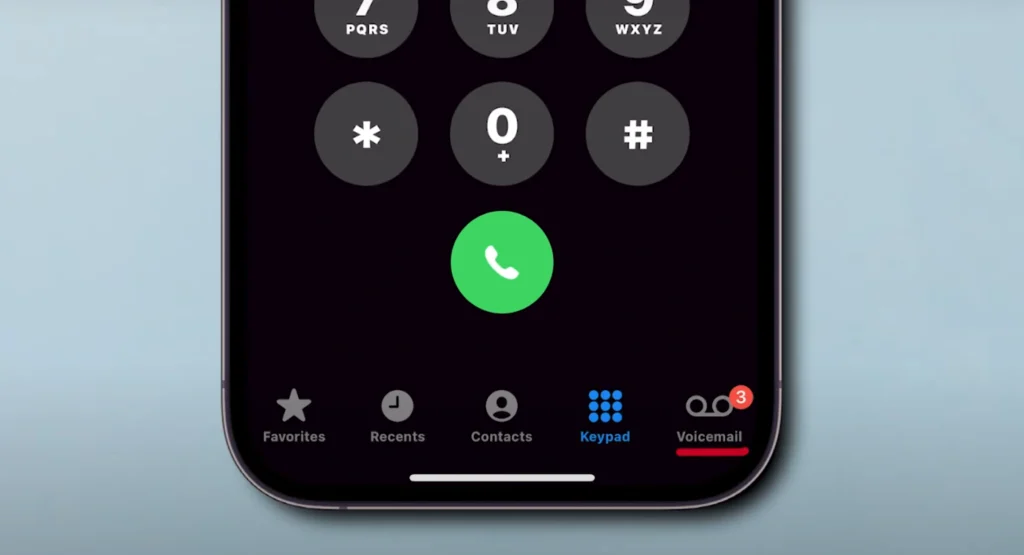
- Open the Phone app
Tap the green phone icon on your home screen. - Go to the Voicemail tab
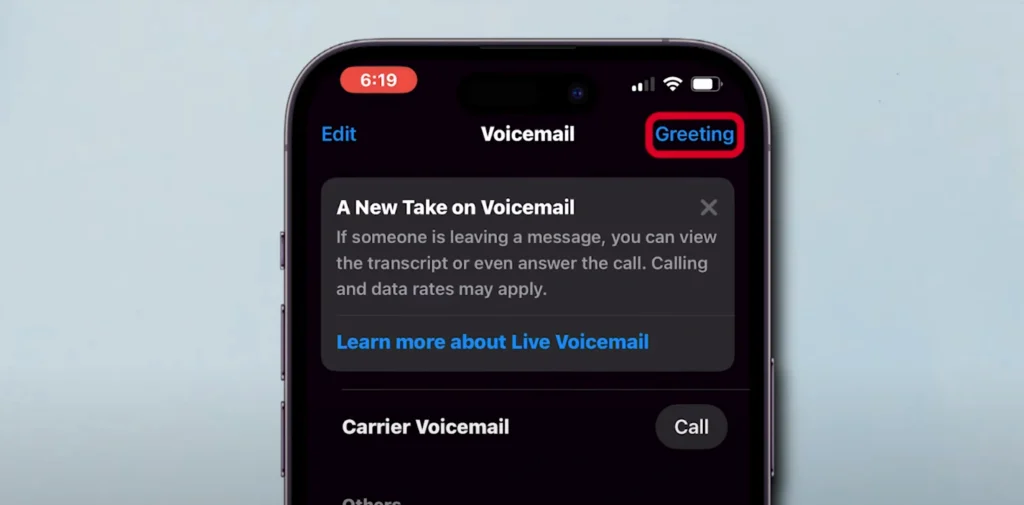
Bottom-right corner. Tap it. - Tap “Greeting.”
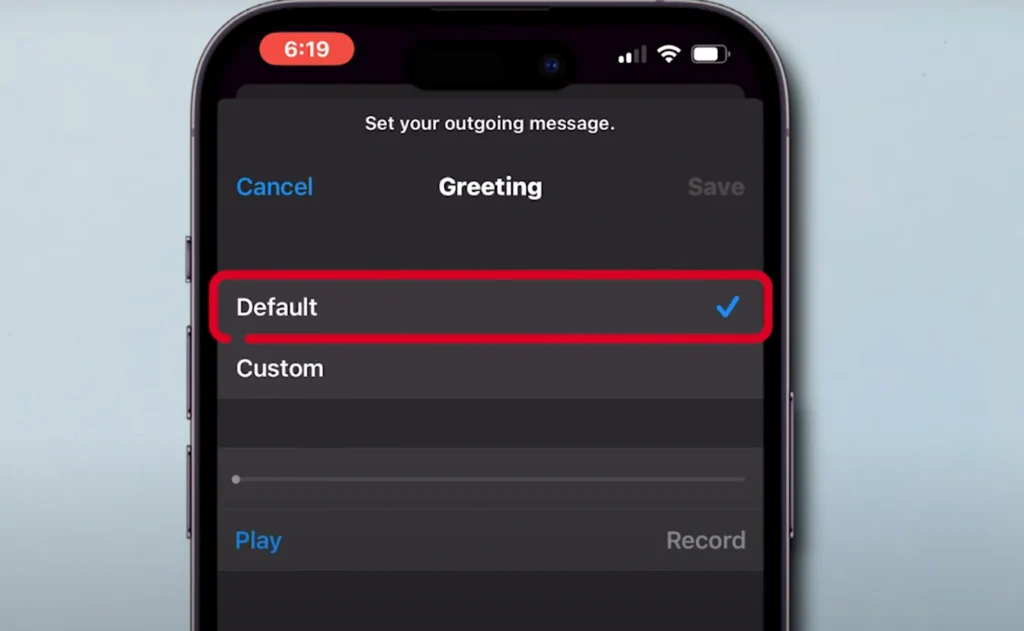
Top left. You’ll see “Default” and “Custom.” - Select “Custom.”
Want your message? Hit “Custom,” then tap “Record.” - Record your new voicemail
Speak clearly. Keep it under 30 seconds. - Tap “Stop” when done
You’ll see “Play” and “Record Again.” - Tap “Save.”
Done. Your new greeting is live.
Why Changing Voicemail on iPhone Is Important for Time Management.
Voicemail is typically the initial impression you leave when you’re unavailable. A proper message can set expectations, provide alternate contact methods, or even direct clients to scheduling links. However, most don’t understand how voicemail productivity impacts time management.
Learning how to change the voicemail greeting on an iPhone is the first step toward less back-and-forth calling and fewer interruptions. When your voicemail is brief, understandable, and current, callers won’t be apt to leave confusing messages or hang up—saving you from follow-up confusion later.
Time-tracking apps like Clockify reveal that most professionals waste 5–15 minutes daily on missed calls and clarification messages. Multiply this by a week or a month, and you’ve wasted hours. That is why knowing how to change voicemail on iPhone can prove to be a time-saving step, not a tech trick.
Pre-requisites Before You Change Your Voicemail on iphone


Before diving into how to change your voicemail message on iPhone, do the prep work:
- Update iPhone: Ensure your iOS is updated. Older versions might have outdated voicemail interfaces.
- Network Connection Check: Voicemail setup requires carrier access.
- Prepare a script: Write down your voicemail message in advance. Saves time re-recording and sounds professional.
- Use a Time Tracker: For productivity enthusiasts, log this task under “digital maintenance” in Plaky or similar apps. You’ll be surprised how much time you can reclaim by optimizing these micro-tasks.
Doing these things before you learn how to change voicemail on iPhone reduces mental overhead and makes your workflow more streamlined.
Pre-requisites Before You Change Your Voicemail on iphone
Don’t rush before you proceed and change your voicemail on iPhone:
- Update iPhone: Ensure your iOS is updated. Previous iOS versions will have various voicemail interfaces.
- Network Connection Check: Carrier access is required for altering voicemail settings.
- Write a script: Plan your voicemail message. This is time-saving and professional.
- Use a Time Tracker: For productivity enthusiasts, flag this task as “digital maintenance” in Clockify or similar software. You will be amazed at the amount of time you can free up by automating these small tasks.
Following these steps before learning to change your voicemail on iPhone prevents mental exhaustion and improves the productivity of your work.
Step-by-Step Guide: How to Change Your Voicemail on iPhone
Now, let us take a peek at changing your voicemail on iPhone in the most basic and quickest method possible. Simply do the following steps:




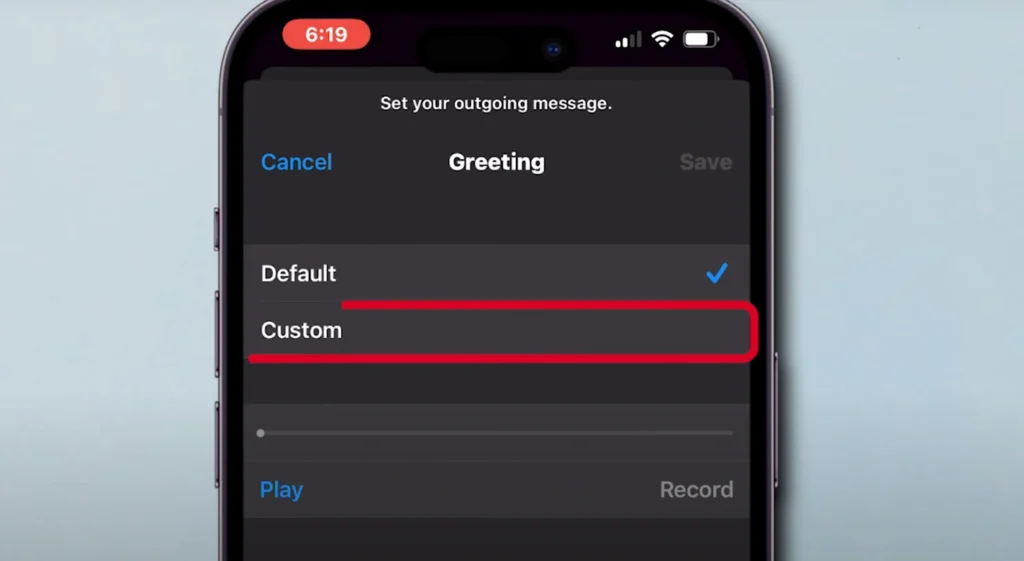

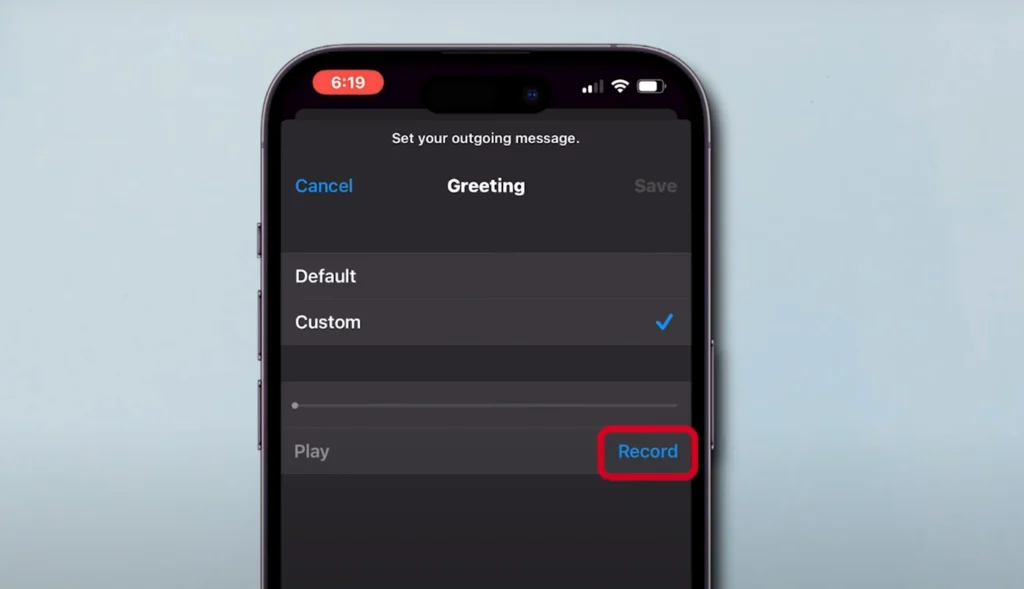
| Steps |
| Launch the phone app. Tap the green phone icon on your iPhone. |
| Tap the ‘Greeting’ option. You will find it in the top-left corner if you have the native iOS visual voicemail system. |
| Select ‘Custom’: This will allow you to record your greeting. |
| Press on ‘Record’: Slow down and speak professionally. |
| Press ‘Stop,’ then ‘Save’: Save the recording. |
You’re finished! You have completed how to change voicemail on iPhone!
Tip pro: Record in a quiet place and do not talk for more than 20 seconds to show respect for the caller’s time.
Doing this exercise every few months will keep your message up to date. And the sooner you become comfortable editing voicemail on iPhone, the sooner you’ll be editing in the future.
Time Tracking Tip: Record or Automate Daily Chores
Because you already know how to set up a voicemail on iPhone, put it in your daily digital upkeep routine. Here’s how you track time and accomplish it with ease:
- Record the task. Create a label in your time-tracking software (e.g., “Phone Setup”) and record the amount of time it took you to follow these instructions.
- Maintenance Schedule: Quarterly to anonymously return to how to update voicemail messages on an iPhone. Life evolves—your voicemail should as well.
- Time Use Analysis: Clockify reports can assist you in understanding how changes like voicemail changes are part of your overall time management setup.
Efficiency isn’t so much a matter of tools—it’s about developing habits. The more you make learning how to change voicemail messages on an iPhone part of your productivity routine, the more you own your time.
Examples of Effective Voicemail Scripts
Learning how to change voicemail on iPhone is one thing; speaking the right words is another. Here are voicemail scripts for different audiences:
1. For Professionals:
“Hello, you’ve reached [Name]. I’m busy right now, but I will get back to you within 24 hours. If it’s urgent, please email me at. Thanks!”
2. For Freelancers:
“Hello, this is [Name]. I’m probably working on some project and might not be able to take your call right away, but don’t worry, your call matters. Leave your name and message, and I’ll get back to you soon.”
3. For Productivity Coaches or Remote Workers:
“Hello, thanks for calling. I’m offline at the moment to maintain focused work time. Leave a message or schedule a meeting via [link].”
Use one of these templates when practicing how to change a voicemail message on an iPhone, and save even more time by not starting from scratch.
Bonus Tip: Align Voicemail with Your Time Management System
This is where productivity and strategy converge. After you’ve mastered how to update a voicemail message on an iPhone, elevate it:
- Time Tool Link: Add scheduling tools (e.g., Calendly or Plaky) to your voicemail. This allows callers to book time with you instead of playing phone tag.
- Focus Modes: Leverage iOS “Do Not Disturb” and “Focus” modes so that voicemails ring only when you truly are unavailable.
- App Integrations: Plaky or Slack can automatically notify your team of missed calls or voicemails—voicemail as a team resource.
These factors contribute to making the process of learning how to change a voicemail message on an iPhone part of a more intelligent work-life integration.
Conclusion
Learning to change your voicemail on iPhone is not exactly a life-changing productivity leap, but it’s one teensy adjustment that results in improved communication, less distraction, and more minutes reclaimed throughout your day. Whether you’re a freelance client caller, a remote worker on a focus marathon run, or a productivity buff trying to optimize all things, voicemail needs to be on your list.
Time how long it takes, streamline the process to make it faster, and repeat it every quarter. The voicemail message on an iPhone should be one of your digital housekeeping chores.
Read more blogs.